Why laptop keyboards are different
Laptop keyboards differ from desktop mechanical keyboards in several important ways that affect typing speed and accuracy. The most significant difference is key travel — the distance a key moves when pressed. Most laptop keyboards have 1–1.5 mm of key travel, compared to 2–4 mm on desktop keyboards. Shorter key travel means less tactile feedback per keystroke, which makes it harder for your nervous system to confirm that a key has been pressed, increasing the likelihood of accidental double-strikes or missed keys.
Key spacing on laptops is usually standard (19 mm pitch), but the edge-to-edge distance between keys — the key width itself — is often narrower than on desktop keyboards. On ultra-thin laptops the keys are also flatter, removing the subtle curvature (called spherical or cylindrical keycap profiles) that helps fingers find the home row without looking. All of these differences require some adaptation when switching between laptop and desktop typing.
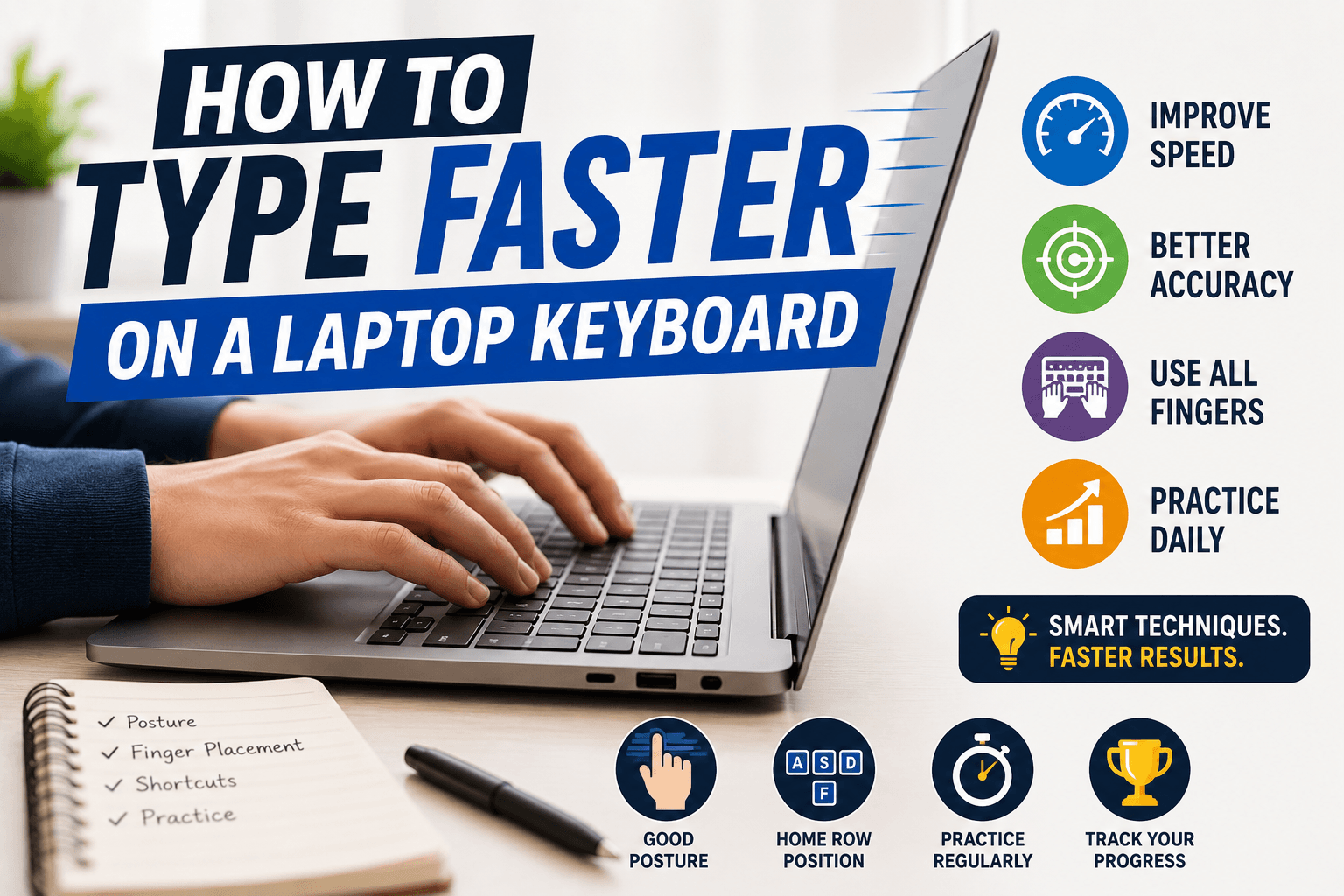
Optimal posture for laptop typing
The most common ergonomic problem with laptop typing is that the screen and keyboard are at fixed heights relative to each other. When the keyboard is at the right height for your arms, the screen is too low and your neck bends forward. When the screen is at eye level, the keyboard is too high and your wrists bend back. The compromise most laptops force on you — screen slightly low, keyboard at desk height — leads to a slightly forward neck posture that accumulates over long sessions.
For extended sessions, the best solution is a laptop stand or external monitor to raise the screen to eye level, combined with an external keyboard at desk height. For portable use where you cannot carry accessories, prioritize keeping your wrists flat (not bent up or down), your elbows roughly level with the keyboard, and your back supported. Taking a short break every 30 minutes to move your neck and shoulders prevents most of the discomfort from accumulating.
Adapting your technique to the shorter travel
The most important technique adjustment for laptop keyboards is lighter touch. On a mechanical keyboard, the distinct click or bump of an actuating switch tells your fingers exactly when each keystroke registers. On a laptop membrane keyboard, there is no such clear signal, so many typists over-press — pushing the key all the way to the bottom of its travel ('bottoming out') on every single stroke. Bottoming out is louder, harder on your fingers, and slower than a technique that releases the key immediately after it registers.
Practice deliberately striking laptop keys with lighter pressure and lifting your finger quickly after each stroke. This will feel unusual at first but becomes natural within a week of conscious practice. The WPM gain from this technique change alone can be 5–10% because your fingers spend less time pressing and more time moving to the next key. Use Medium or Hard difficulty on TypingMonk, pay attention to your accuracy, and notice whether lighter touch affects your error rate positively.
The heat problem and typing sessions
Many laptops generate significant heat around the CPU area, which is often located under or near the upper keyboard. Typing on a hot keyboard surface for extended periods is uncomfortable and can lead to faster fatigue. If your laptop runs hot, ensure adequate ventilation — do not type with the laptop on a pillow or blanket that blocks the vents. A laptop stand that elevates the machine improves airflow and also improves the screen angle simultaneously.
Laptop batteries and charging status also subtly affect CPU throttling on some machines: a laptop on battery-saving mode may have slightly reduced responsiveness, though modern hardware minimizes this to imperceptible levels. If you are taking a timed typing test for employment purposes, connect to power to eliminate any potential throttling variable.
Practice strategies specific to laptop users
Because laptop keyboards have different feel characteristics, practice sessions conducted on your actual laptop keyboard are more valuable than sessions on a desktop keyboard if the laptop is what you will use professionally or in an assessment. Muscle memory is partially device-specific — the force curves, key spacing, and feedback patterns your fingers learn on one keyboard may not transfer perfectly to another.
If you regularly switch between laptop and desktop (for example, using a desktop at work and a laptop at home), do regular practice on both. Many experienced typists maintain WPM figures that are 5–15% higher on their preferred keyboard and slightly lower on their secondary one. Closing the gap requires deliberate cross-device practice. Use TypingMonk across both devices and compare your results to quantify the gap.
When to consider an external keyboard
If your current laptop keyboard makes regular typing uncomfortable, if you type more than two hours per day, or if your WPM on the laptop is significantly lower than on a desktop, an external keyboard is worth considering. A good quality membrane external keyboard costs very little and eliminates most of the ergonomic compromises of built-in laptop keyboards. A compact 75% or TKL mechanical keyboard can often be sourced for a modest price and makes a large practical difference.
Even a basic external keyboard allows you to position the screen at eye level (on a stand) and the keyboard at elbow height — the optimal ergonomic configuration that is impossible to achieve with an integrated laptop keyboard. If you work from a desk most of the time, this setup is one of the most cost-effective productivity investments available. Reserve the built-in keyboard for truly mobile use.
Put it into practice
Take a free typing test and see your WPM right now.
Comments
Sign in to leave a comment.