The Hidden Cost of Typing Without Care
Millions of people type for hours every day without giving a second thought to how they are doing it. Wrists bent upward, elbows splayed out, shoulders hunched, screen too high or too low — bad habits that feel comfortable in the short term accumulate into painful and sometimes serious injuries over months and years.
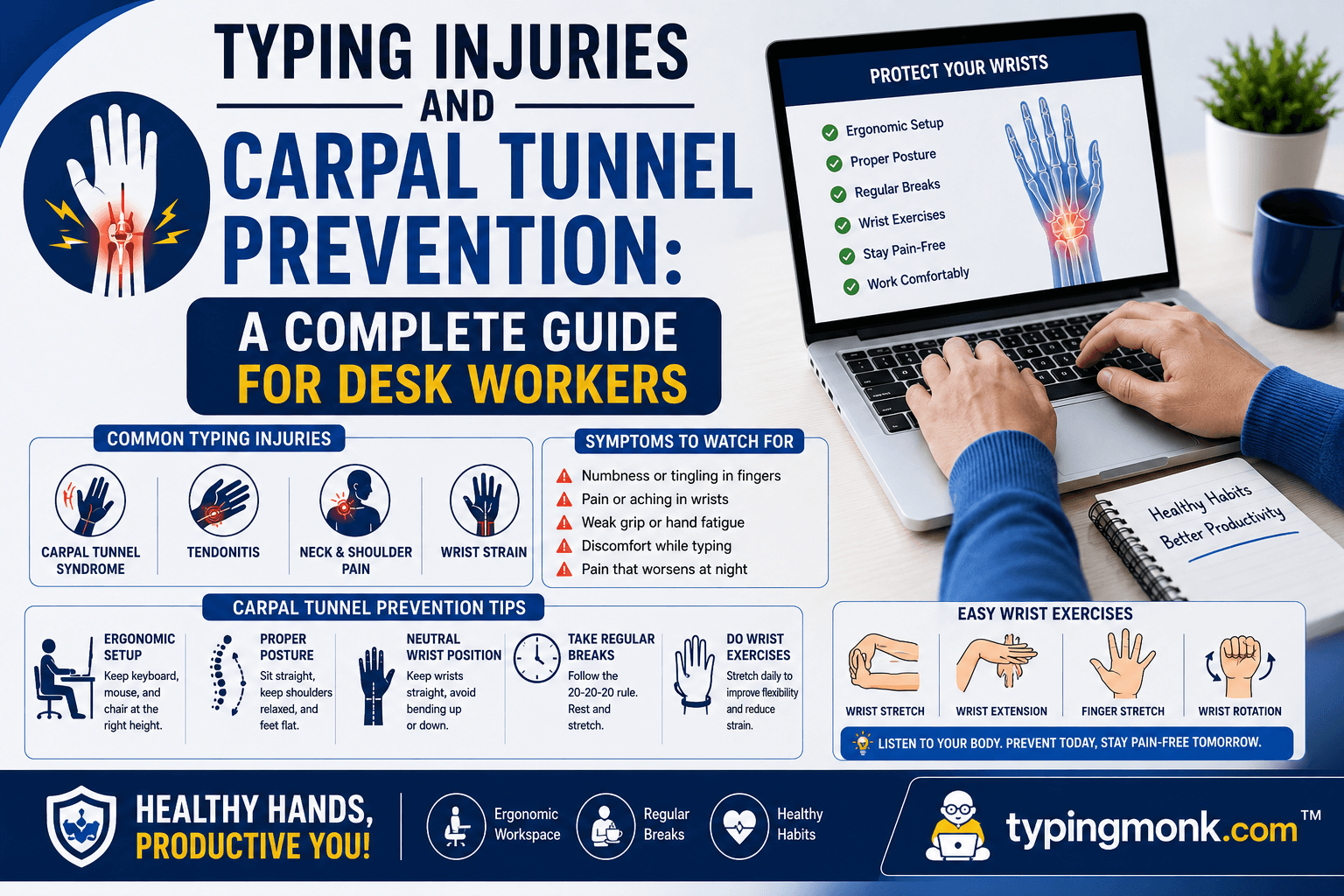
Repetitive Strain Injury (RSI) is an umbrella term for a group of conditions caused by repeated movements over time. Carpal Tunnel Syndrome (CTS) is the most widely known form, but RSI also includes tendinitis, De Quervain's tenosynovitis, and cubital tunnel syndrome. In 2024, a global meta-analysis found that CTS affects 2 to 5 percent of the general population, with significantly higher rates among office workers and computer-intensive professions. Among workers who type more than 6 hours per day, lifetime risk of developing some form of typing-related RSI approaches 15 to 20 percent without preventive measures.
The encouraging news is that most of these conditions are preventable. Ergonomic workstation setup, structured breaks, targeted exercises, and awareness of early warning signs are all that most people need to avoid injury entirely.
Understanding Carpal Tunnel Syndrome
The carpal tunnel is a narrow passageway in the wrist formed by bones and ligaments. The median nerve and nine tendons pass through this tunnel. When the tunnel becomes compressed — due to swelling, inflammation, or repetitive stress — the median nerve is pinched, producing the characteristic symptoms of CTS.
Symptoms include tingling and numbness in the thumb, index, middle, and part of the ring finger (the specific fingers innervated by the median nerve). Pain radiating from the wrist toward the elbow is common. In more severe cases, grip strength weakens and fine motor tasks become difficult. Many people first notice symptoms at night, when the wrist position during sleep reduces circulation through the carpal tunnel.
Risk factors beyond repetitive typing include: female gender (women are 3 times more likely to develop CTS), age (peak incidence 45 to 60 years), pregnancy (fluid retention compresses the tunnel), diabetes, hypothyroidism, rheumatoid arthritis, and obesity. Existing risk factors make ergonomic prevention even more critical.
The Correct Typing Posture: A Room-by-Room Setup Guide
The foundation of injury prevention is workstation ergonomics. Minor adjustments to chair height, keyboard position, and screen distance can eliminate the majority of strain that accumulates during a typical workday.
Chair height: Adjust so your feet are flat on the floor and your knees form a 90 to 100 degree angle. If your feet do not reach the floor at the correct seat height, use a footrest. Seat depth should allow two to three fingers of clearance between the back of your knees and the seat edge.
Back angle: A slight recline of 100 to 110 degrees (not fully upright) reduces spinal compression and lower back strain. Lumbar support should contact the natural inward curve of your lower back. If your chair lacks built-in lumbar support, a small rolled towel or lumbar cushion works well.
Armrests: Set so that your elbows rest lightly at approximately 90 to 110 degrees, with shoulders relaxed and not elevated. Armrests that are too high force your shoulders up toward your ears — a primary cause of neck and shoulder pain.
Keyboard height: The keyboard should be at or just below elbow height. Your forearms should be approximately parallel to the floor or angled very slightly downward. Reaching up to type elevates the shoulders and compresses the neck.
Keyboard angle: Flat or slightly negative tilt (front of keyboard raised slightly higher than the back) keeps wrists neutral. Many keyboards have feet on the back to tilt upward — this creates wrist extension (bending the wrist back) which is one of the most damaging positions for carpal tunnel health. Keep the keyboard flat or close the feet entirely.
Wrist position: Wrists should be straight — not bent up, down, or sideways. The line from your forearm to the back of your hand should be flat. Even slight and sustained wrist deviation accumulates significant stress on the carpal tunnel over hours of typing.
Monitor distance: Place your screen 20 to 40 inches (50 to 100 cm) from your eyes. The top of the screen should be at or slightly below eye level so your neck is not craned upward. Center the screen directly in front of you — not to one side — to prevent chronic neck rotation.
Lighting: Reduce glare on your monitor by positioning it perpendicular to windows rather than facing a window or with a window behind it. Use a matte screen protector or anti-glare filter if ambient light cannot be controlled.
Wrist Rests: The Common Mistake
Many people use wrist rests constantly while typing. This is incorrect and counterproductive. Wrist rests are designed to support your wrists during pauses in typing — not while you are actively pressing keys.
Pressing the wrist down into a wrist rest while typing creates sustained compression directly over the carpal tunnel. The soft tissue is pushed upward into the tunnel, reducing the space available for the median nerve. Used this way, a wrist rest actively contributes to CTS rather than preventing it.
Use your wrist rest during moments when you pause at the keyboard — reading something on screen, thinking about what to write next, taking a phone call. When actively typing, your wrists and forearms should be floating slightly above the keyboard surface, with movement originating from your fingers and light forearm support from the armrests.
Break Schedules That Prevent Injury
No ergonomic setup can fully compensate for unbroken hours of typing without movement. The human body was not designed for sustained static postures, and even a perfectly positioned workstation produces cumulative fatigue in the fingers, wrists, and forearms over time.
The most practical break framework for office workers is structured around three break types:
Micro-break: Every 10 minutes, take 30 to 60 seconds away from typing. Let your hands drop to your lap, shake out your fingers, relax your grip, and roll your shoulders. This does not require leaving your desk — just a momentary reset.
Short break: Every 30 to 45 minutes, take 5 minutes of deliberate movement. Stand up, walk to the water cooler, look out a window, or do a few stretches at your desk. The goal is to break the static posture and restore circulation.
Full break: Every 2 hours, take at least 15 minutes away from the screen and keyboard. This allows the tendons in the fingers and wrists to fully recover from sustained repetitive motion.
The 20-20-20 rule applies specifically to eye strain but pairs well with short breaks: every 20 minutes, look at something 20 feet away for 20 seconds to relax the focusing muscles of the eye.
Seven Essential Hand and Wrist Exercises
These exercises can be performed at your desk during micro-breaks or short breaks. They target the specific muscles and tendons most affected by typing.
Wrist circles: Extend both arms in front of you with hands loosely open. Rotate wrists in slow full circles, 10 rotations clockwise and 10 counterclockwise. This mobilizes the wrist joint and improves synovial fluid distribution.
Prayer stretch: Place palms together in front of your chest, fingers pointing upward. Press lightly and hold for 20 to 30 seconds. You will feel a stretch along the inner forearms and wrists.
Reverse prayer stretch: Turn hands so the backs are together with fingers pointing downward. Press gently and hold for 20 to 30 seconds. This stretches the extensors on the back of the forearms.
Finger fan: Open your hands with fingers spread as wide as possible, like fans. Hold for 5 seconds, then close into a loose fist. Repeat 10 times. This mobilizes the small joints of the fingers and prevents the tendons from shortening with disuse.
Tendon glide sequence: Start with fingers straight, then curl into a hook shape (fingertips touching palm, middle knuckles bent outward). Then close into a full fist. Then open flat again. Cycle through this sequence 10 times with each hand. This exercise is specifically recommended by hand therapists for carpal tunnel prevention because it moves tendons through their full range within the carpal tunnel.
Wrist flexion stretch: Extend one arm with palm facing up. Use the other hand to gently press the fingers downward, stretching the underside of the forearm. Hold 20 seconds, switch arms.
Wrist extension stretch: Extend one arm with palm facing down. Use the other hand to gently press the fingers downward (toward the floor), stretching the top of the forearm. Hold 20 seconds, switch arms.
Warning Signs You Should Not Ignore
Several symptoms indicate that typing-related strain is progressing toward injury. None of these should be dismissed as normal fatigue.
Tingling, numbness, or a pins-and-needles sensation in the fingers — particularly thumb, index, and middle fingers — that does not resolve with rest is a classic early indicator of CTS. Pain that radiates from the wrist toward the elbow during or after typing. Weakness in grip strength, difficulty opening jars or buttons. Symptoms that wake you at night or are worse in the morning. Pain in the wrist or forearm that persists for more than two weeks despite rest.
If you experience any persistent symptoms, consult a physician or physiotherapist. Early intervention — ergonomic adjustment, targeted physical therapy, or temporary activity modification — almost always prevents progression to a level requiring surgical treatment. Ignoring symptoms until they are severe dramatically increases recovery time and the risk of permanent nerve damage.
Light Touch: The Underrated Prevention Tool
One prevention tool that receives less attention than ergonomics but has significant impact is typing pressure. Most typists press keys 4 to 5 times harder than the mechanical actuation force requires. Mechanical keyboard switches actuate at 35 to 65 grams of force depending on the switch. A light linear switch actuates at 35 to 45 grams. Yet studies of actual typing behavior show average keystroke force of 150 to 200 grams — three to four times more than needed.
This habitual over-pressing compresses the finger joints, stresses the tendons, and transmits shock up through the wrists with every keystroke. Training yourself to use the minimum force necessary — a light touch that actuates the key without bottoming out the switch forcefully — significantly reduces cumulative daily strain.
Mechanical keyboards with lighter switches (Cherry MX Red, Gateron Yellow, or similar linear switches under 45g) help enforce lighter typing by providing tactile feedback when the key actuates, making it easier to avoid bottoming out. Even on a standard keyboard, consciously reducing your typing force over several weeks builds the habit of lighter touch.
Long-Term Maintenance
Once you have established good ergonomic habits and a regular exercise routine, maintenance is straightforward. The key is consistency rather than intensity. Five minutes of wrist exercises every day at your desk prevents far more injury than an intensive stretching session once a week.
Review your workstation setup every six months. Chair and desk positions drift over time, and what was ergonomically correct when you first set it up may no longer match your needs after months of adjustment. Schedule a 10-minute ergonomic self-check at the start of each new season.
Your hands and wrists are tools for a lifetime. The small investment of attention in how you use and care for them while typing pays dividends not just at work but in every fine-motor activity you do — playing an instrument, cooking, creating, and simply living without pain.
Put it into practice
Take a free typing test and see your WPM right now.
Comments
Sign in to leave a comment.